- sales/support
Google Chat: zj734465502@gmail.com
- sales
+86-0755-88291180
- sales01
sales@spotpear.com
- sales02
dragon_manager@163.com
- support
tech-support@spotpear.com
- CEO-Complaints
zhoujie@spotpear.com
- sales/support
WhatsApp:13246739196
RPi Tutorial Series: Access your Pi User Guide
Via SSH
SSH Connection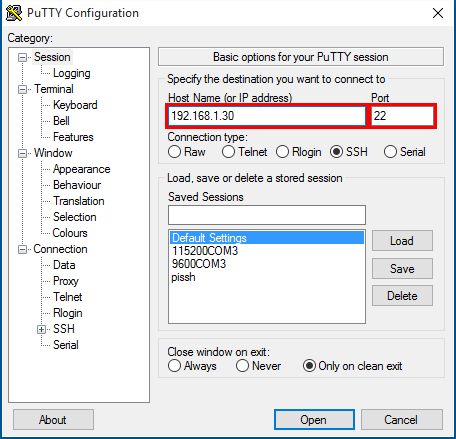
SSH is one of the most commonly used method for remote access and there are many apps to help you connect with your Pi via SSH, e.g. Putty (click to download), SecureCRT, SSH Secure Shell Client, juiceSSH, etc.
Before accessing your Pi via SSH, you should prepare a router environment and get the Pi address which can often be found in the page of your router. Then you can access the Pi via the IP and the port 22. For example, using PuTTY:
- Input "Host Name (on IP address)" with the address of your Pi and "Port" with 22 then click Open.
- Access with the username "pi" and the password "raspberry".
Via Serial Port
Serial COM Port Connection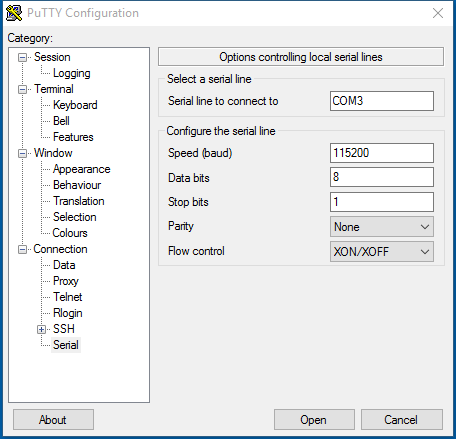
You can access the Pi via serial port even if without Ethernet connections or monitors. In such cases, a USB serial module (USB to TTL) is necessary or you can choose our Raspberry Pi extension boards, e.g. Pioneer600, ARPI600, DVK512, etc., which are embedded with a serial modules. You can access your Pi via Serial Port using the software PuTTY, Xshell (and so on) as follows:
- Connect the RX pin from the module to the TXD0 pin (GPIO14) of the Pi.
- About pin definition, see: RPi3 B Schematic
- Connect the TX pin from the module to the RXD0 pin (GPIO15) of the Pi.
- Run the software PuTTY, click the Serial tag on the left and select a proper Serial Port (listed on the Device Manager of Windows PC).
- Speed (baud): 115200
- Data bits: 8
- Stop bits: 1
- Parity: None
Via Remote Desktop Connection
Remote Desktop Connection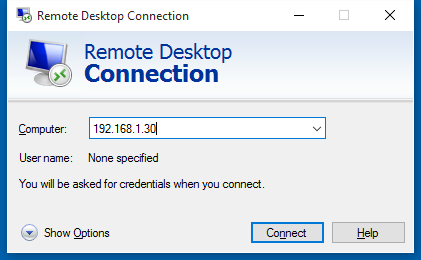
Protocol Error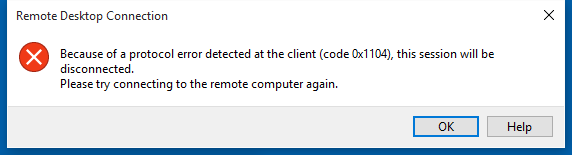
Usually, even if you input a correct Raspberry Pi IP with a SSH port 22 or remote port 3389 in the Remote Desktop Connection on a Windows PC, you can only get an error prompt rather than access your Pi.
But in fact you can connect your Pi using the Remote Desktop Connection. What should be done is just that install the software called xrdp to your Pi with the command:
- install tightvncserver followed by xrdp
sudo apt-get install tightvncserver
sudo apt-get install xrdp
Then open the Remote Desktop Connection on your PC and type the IP of your Pi. The port number is not required, although you can append ":3389" (not :22) to the IP.