- sales/support
Google Chat:---
- sales
+86-0755-88291180
- sales01
sales@spotpear.com
- sales02
dragon_manager@163.com
- support
tech-support@spotpear.com
- CEO-Complaints
zhoujie@spotpear.com
- Only Tech-Support
WhatsApp:13246739196
- Purchase/Shipping/Refund
WhatsApp:13424403025
Ink Screen Font Library Tutorial
The following are examples of Chinese characters. We take the Raspberry Pi demo with a 2.13 V3 ink screen as an explanation, and other demos/fonts are similar.
Add the Chinese Font Library
Here is an example of adding font24CN.c.
Open the Zimo221.7z software and follow the steps below to configure the software.
Choose "Font selection for the text area."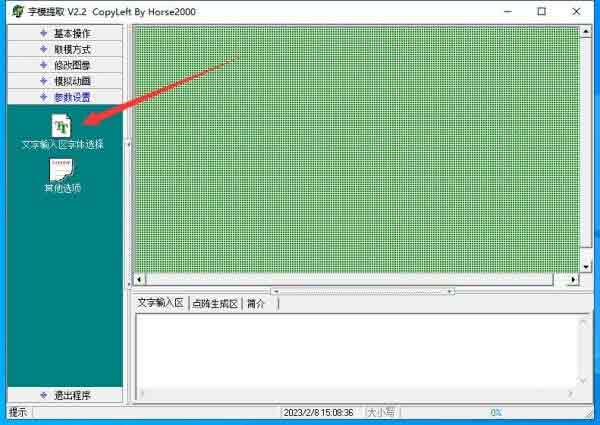
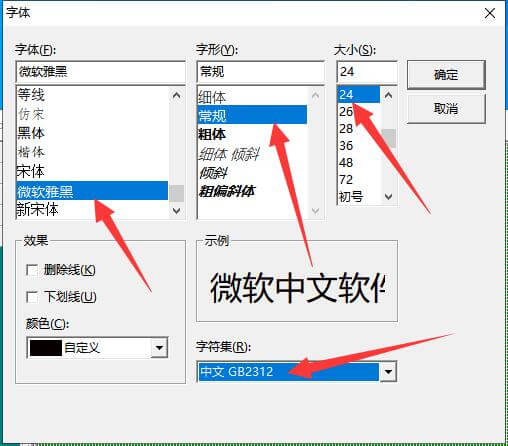
Please select the corresponding font type according to the picture, and click "OK" after completing the configuration.
Font: Microsoft YaHei
Style: Regular
Size: 24
Character set: GB2312
Select "Other options".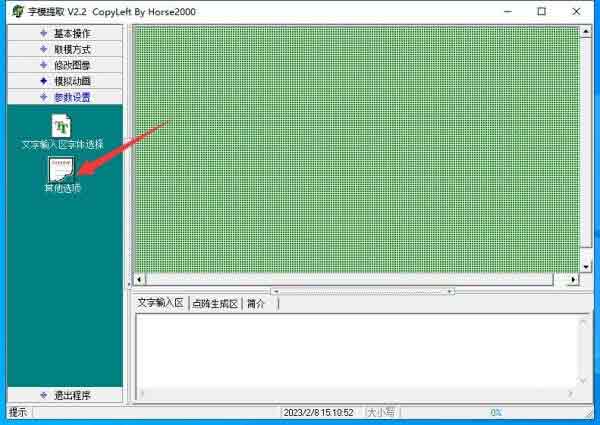
Select the corresponding configuration according to the picture, and then click "OK".
Pattern extraction method: Horizontal extraction.
Keep a comma at the end of the reserved byte.
We will use C51 pattern extraction later, so the A51 format can be ignored.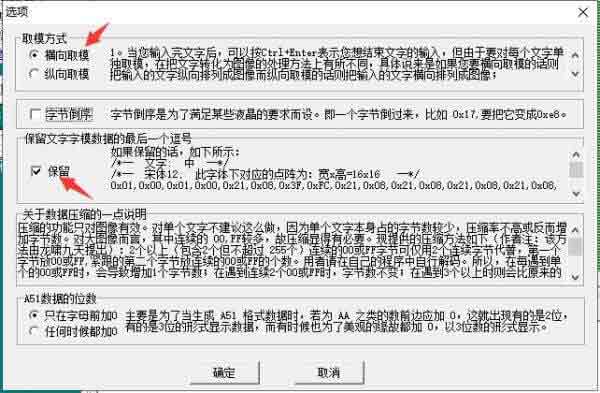
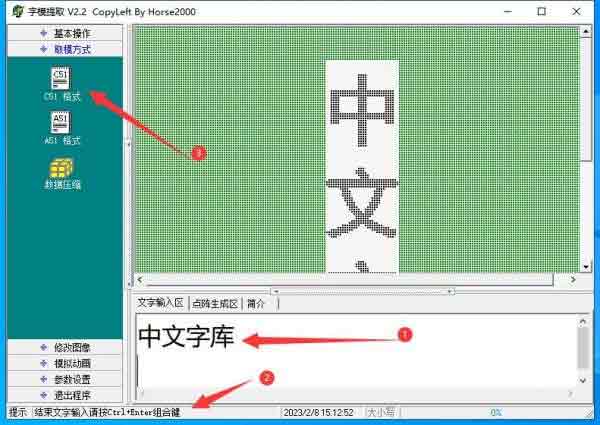
- ①Input the Chinese characters here, and then press Ctrl + Enter.
- ②The preview of the inputted Chinese characters is displayed in Location 2.
- ③Click on the C51 format on the left side for the pattern extraction.
- ④The corresponding hexadecimal data will be generated afterward.
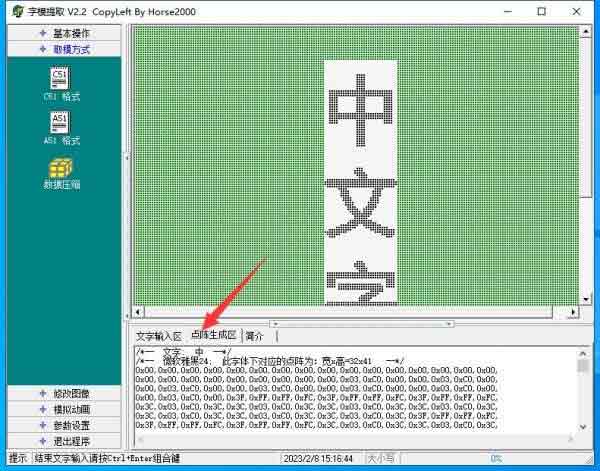
Open the corresponding file of the demo. The software I am using here is VS Code. Change the format from UTF-8 to GB2312.
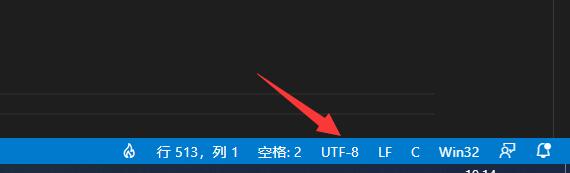
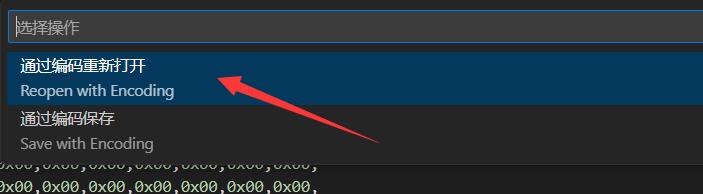
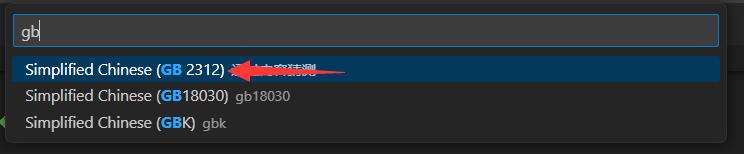
To copy and modify the data that has just been extracted to the corresponding file according to the file format: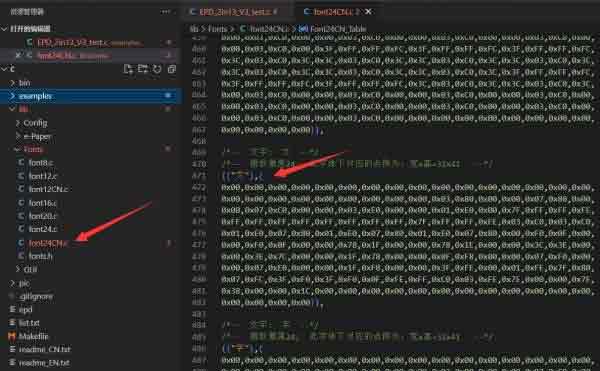
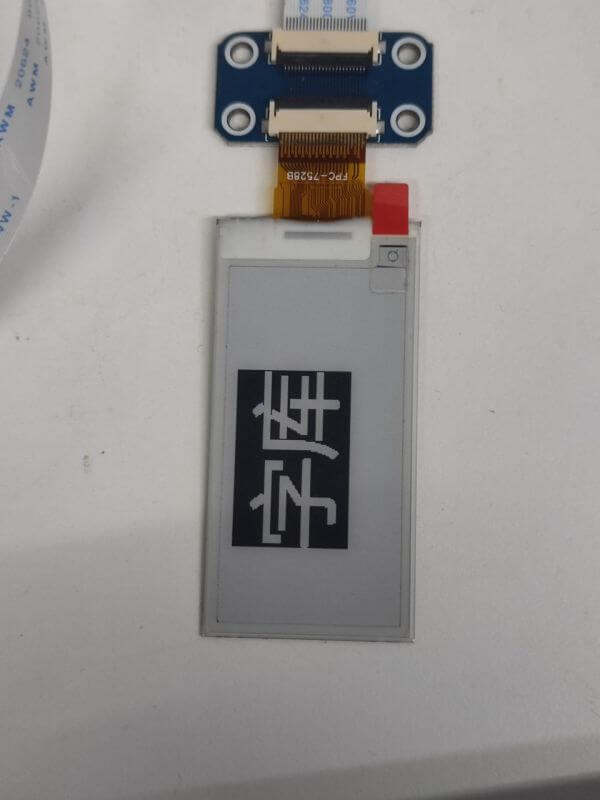
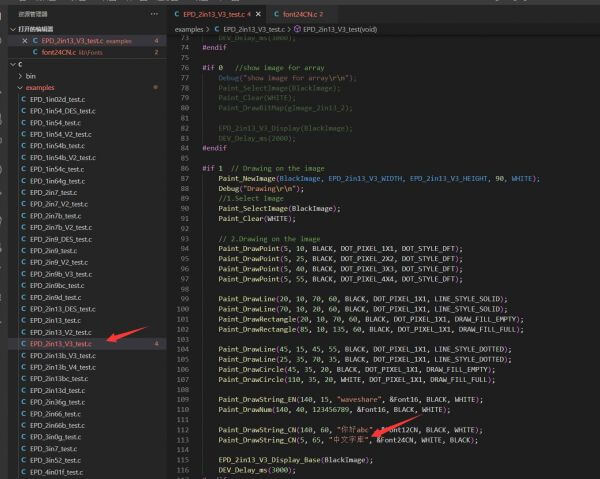
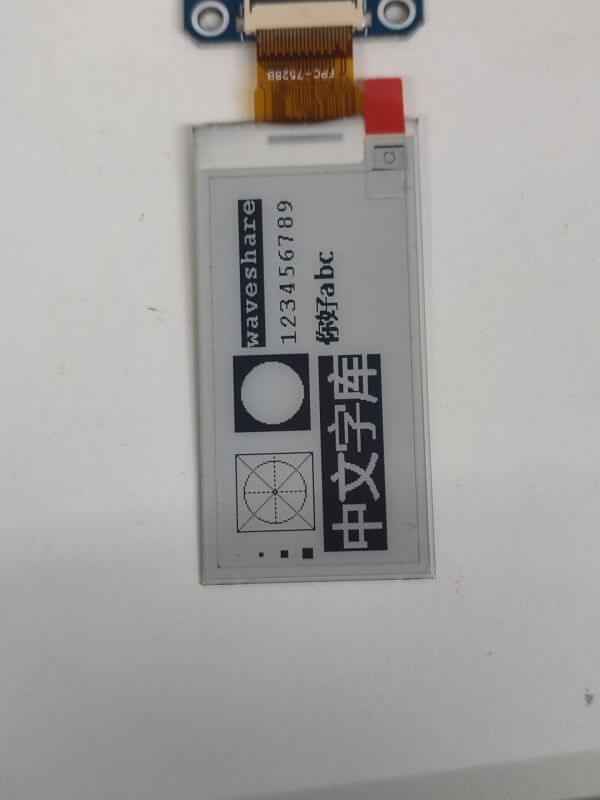
Open the "EPD_2in13_V3_test.c" file and replace "微雪电子" with "中文字库". Compile and run the demo, you will see that the previous "微雪电子" on the demo has been changed to "中文字库".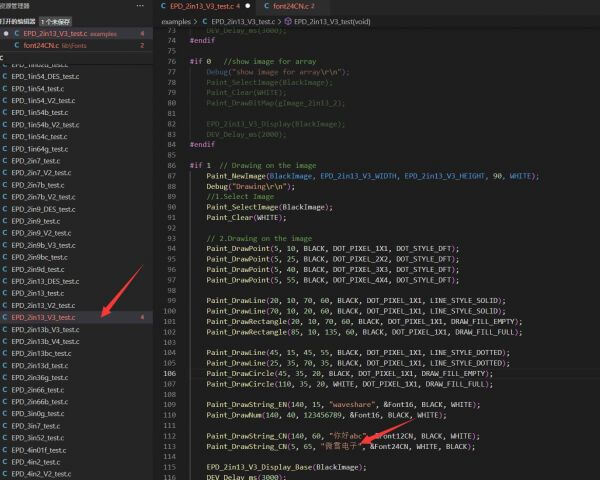
Add New Font Library
Here is an example of adding font48CN.c.
Open the Zimo221.7z software and follow the steps below to configure the software.
Choose "Font selection for the text area."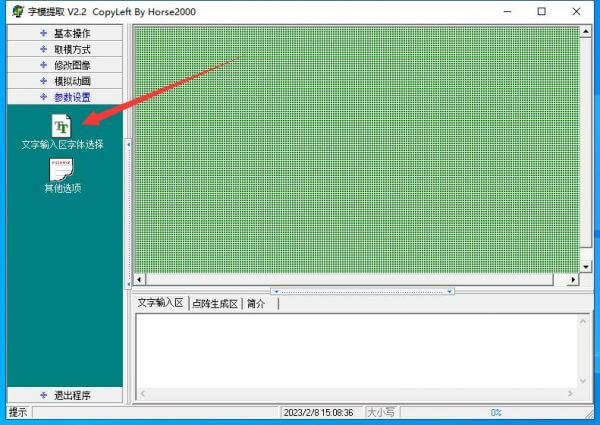
Please select the corresponding font type according to the picture, and click "OK" after completing the configuration.
Font: Microsoft YaHei
Style: Regular
Size: 48
Character set: GB2312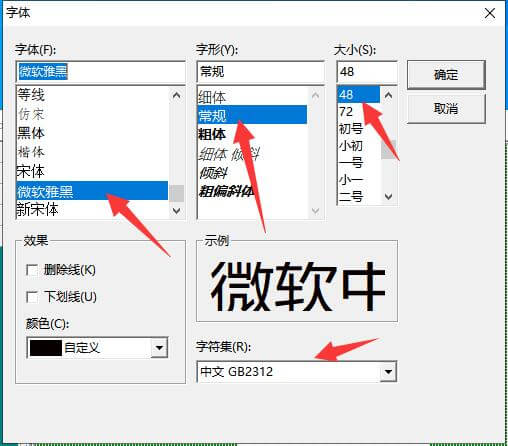
Select "Other options".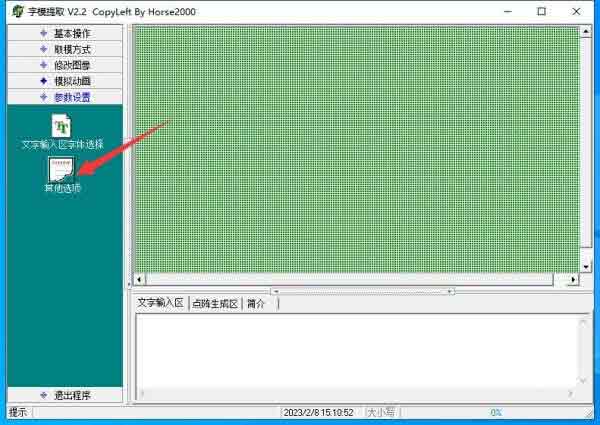
Select the corresponding configuration according to the picture, and click "OK" after completing the configuration.
Pattern extraction method: Horizontal extraction.
Keep a comma at the end of the reserved byte.
We will use C51 pattern extraction later, so the A51 format can be ignored.
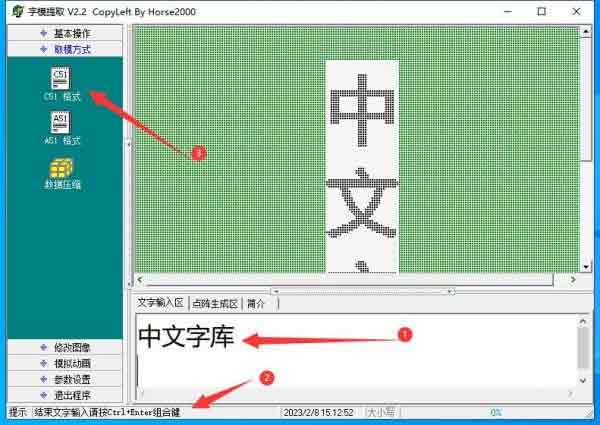
- ①Input the Chinese characters here, and then press Ctrl + Enter.
- ②The preview of the inputted Chinese characters is displayed in Location 2.
- ③Click on the C51 format on the left side for the pattern extraction.
- ④The corresponding hexadecimal data will be generated afterward.
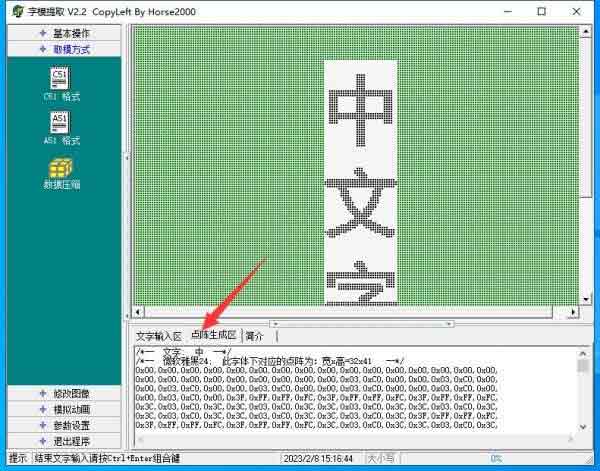
Create a new font48CN.c file in the corresponding file directory: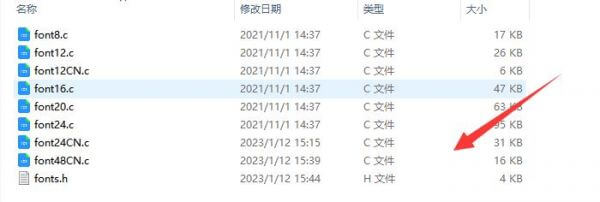
Follow the example of font24CN.c file and add the corresponding data to the font48CN.c file: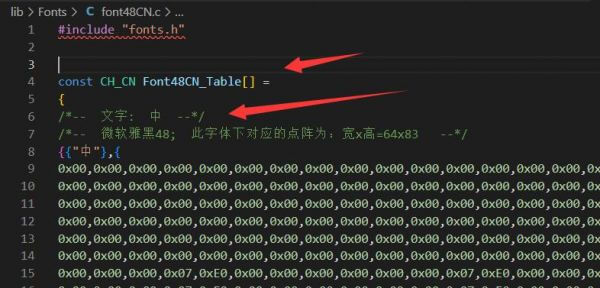
Modify font.h file data: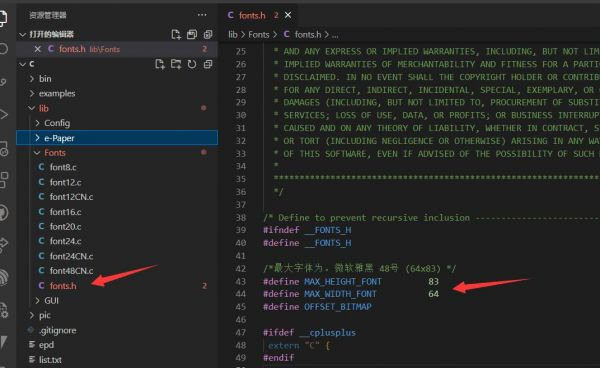
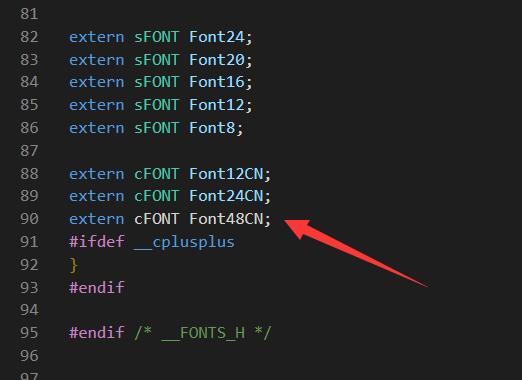
Open the file EPD_2in13_V3_test.c and modify it to the demo shown in the figure: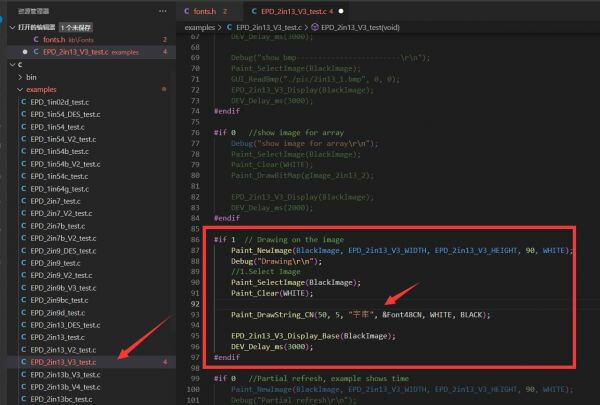
The display effect is shown below: