- sales/support
Google Chat:---
- sales
+86-0755-88291180
- sales01
sales@spotpear.com
- sales02
dragon_manager@163.com
- support
tech-support@spotpear.com
- CEO-Complaints
zhoujie@spotpear.com
- Only Tech-Support
WhatsApp:13246739196
- Purchase/Shipping/Refund
WhatsApp:13424403025
Raspberry Pi Temperature control switch version User Guide
Temperature control switch version
The Raspberry Pi RGB_Cooling_HAT needs to be properly plugged into the GPIO port of the Raspberry Pi and open the Raspberry Pi system I2C function.
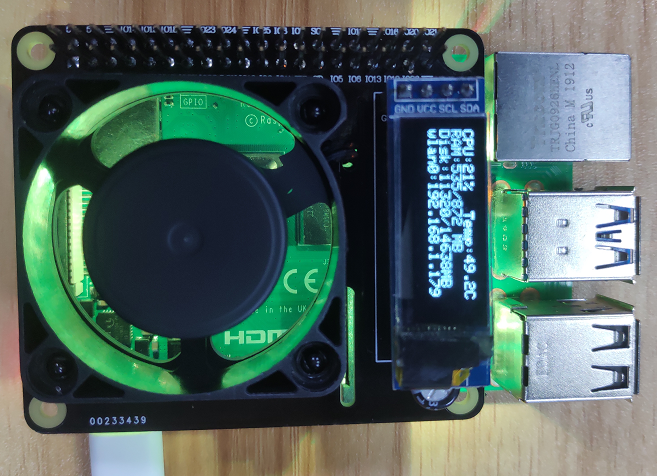
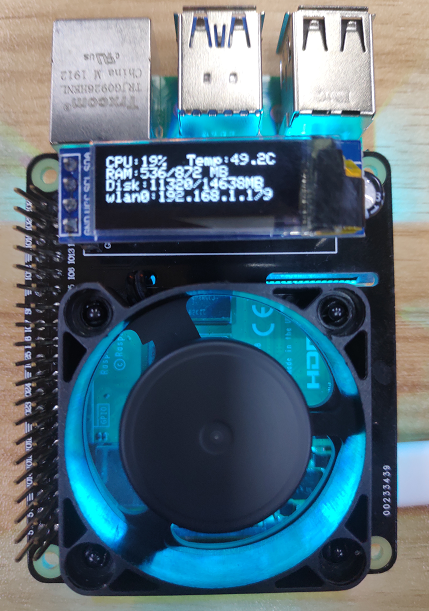
This experimental phenomenon shows that the OLED displays the CPU usage, CPU temperature, running memory usage, disk usage and IP address of the Raspberry Pi. The RGB light turns on the special effect. When the CPU temperature of the Raspberry Pi reaches a certain level, the fan will automatically turn on, cooling the Raspberry Pi. When the temperature drops, the fan will automatically turn off.
1. File transfer
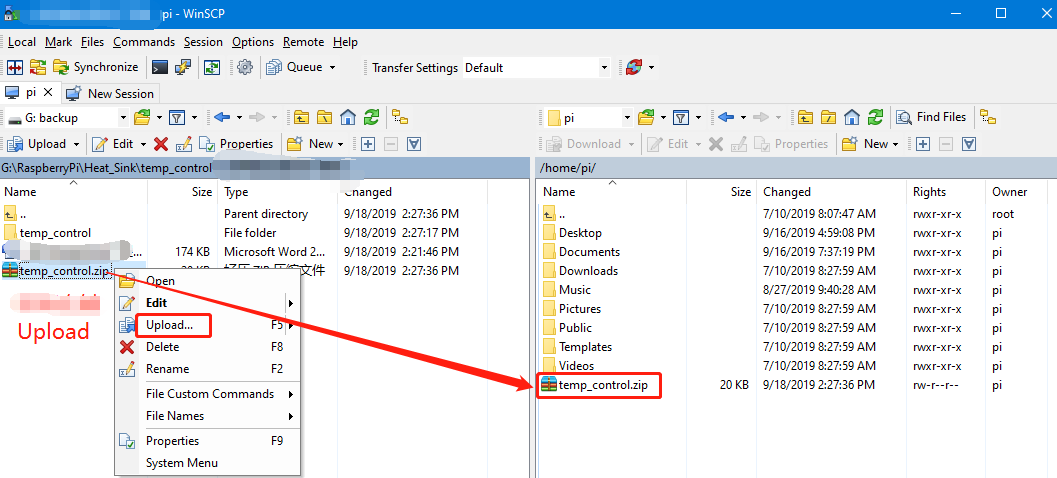
1.1 Install WinSCP tool on the computer side, connect the Raspberry Pi and transfer the temp_control.zip package to the pi directory of the Raspberry Pi.
Path of WinSCP:[Raspberry Pi RGB_Cooling_HAT]---[Tools]---[winscp556_setup.1416364912.exe]
1.2 Extract file
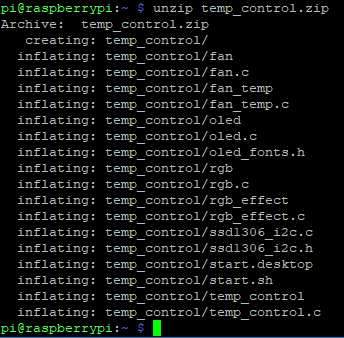
Open the Raspberry Pi terminal and input command ls to find the temp_control.zip file.
As shown below:

Input command to extract file:
unzip temp_control.zip
2.Compiling and running program
2.1 Input command to enter temp_control find file:
cd temp_control/
ls

2.2 Input command to compile:
gcc -o temp_control temp_control.c ssd1306_i2c.c -lwiringPi
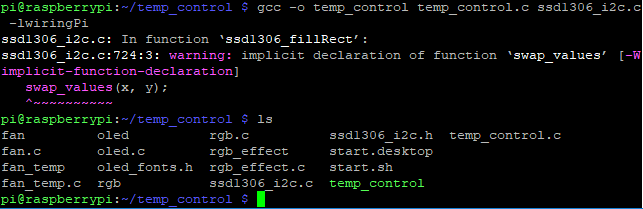
Among them, the gcc compiler is called, -o means to generate the file, temp_control is the generated file name, temp_control.c is the source program, ssd1306_i2c.c is the library that drives oled, and -lwiringPi is the wiringPi library that references the Raspberry Pi.
2.3 Input command to run the program
./temp_control

At this point, the system will prompt “init ok!”, RGB lights show special effects, and the OLED screen displays information such as CPU usage, CPU temperature, running memory usage, disk usage and IP address of the Raspberry Pi.
①If you use the Raspberry Pi 4B board, when the CPU temperature reaches 55℃, the fan will automatically turn on, to send heat to the Raspberry. When the temperature drops to 48℃, the fan is automatically turn off.
②If you use the Raspberry Pi 3B+ board, when the CPU temperature reaches 46℃, the fan will automatically turn on, and when the CPU temperature drops to 40℃, it will automatically turn off.
Press Ctrl+C to exit this program.
3. Add boot self-starting
3.1 Input command to enter relate folder
cd /home/pi/temp_control
3.2 Input command t view script file
ls

3.3 Run script command to install
sudo sh install.sh
Finally, system will prompt “install ok!”
As shown below.
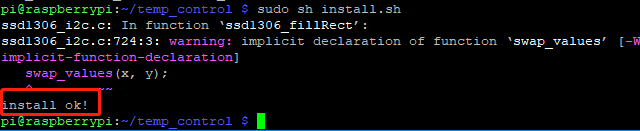
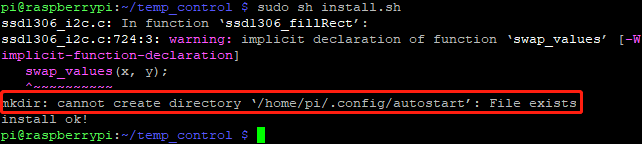
!Note: If you already have the autostart folder, it will be prompt can not create the autostart folder, which will not affect our use.
4.Restart Raspberry pi
Input command to restart Raspberry Pi:
sudo reboot