- sales/support
Google Chat:---
- sales
+86-0755-88291180
- sales01
sales@spotpear.com
- sales02
dragon_manager@163.com
- support
tech-support@spotpear.com
- CEO-Complaints
zhoujie@spotpear.com
- Only Tech-Support
WhatsApp:13246739196
- Purchase/Shipping/Refund
WhatsApp:13424403025
Chapter 7 of KitiBot-Microbit: Shaking, KitiBot User Guide
Shaking, KitiBot
In this chapter we learn how to control the steering gear as well as how to make the robot shake its 'head'.
Servo
The steering gear is a servo control. The head of the robot is fitted with a steering gear and he can rotate a certain angle. Below is the block to control the steering gear
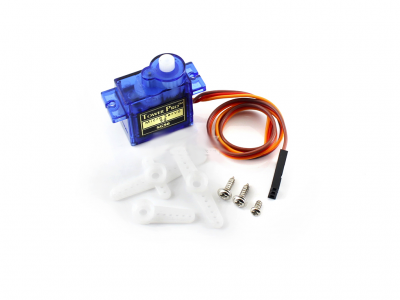
 : This block could be used to control servo
At 90 degrees, the robot looks forward;
At 0 degrees, the robot looks to the right;
At 180 degrees, the robot looks to the left.

After downloading, the robot shakes its head quickly looking forward. If robot didn't look forward, you can adjust the head of robot to look forward.
Control servo with button
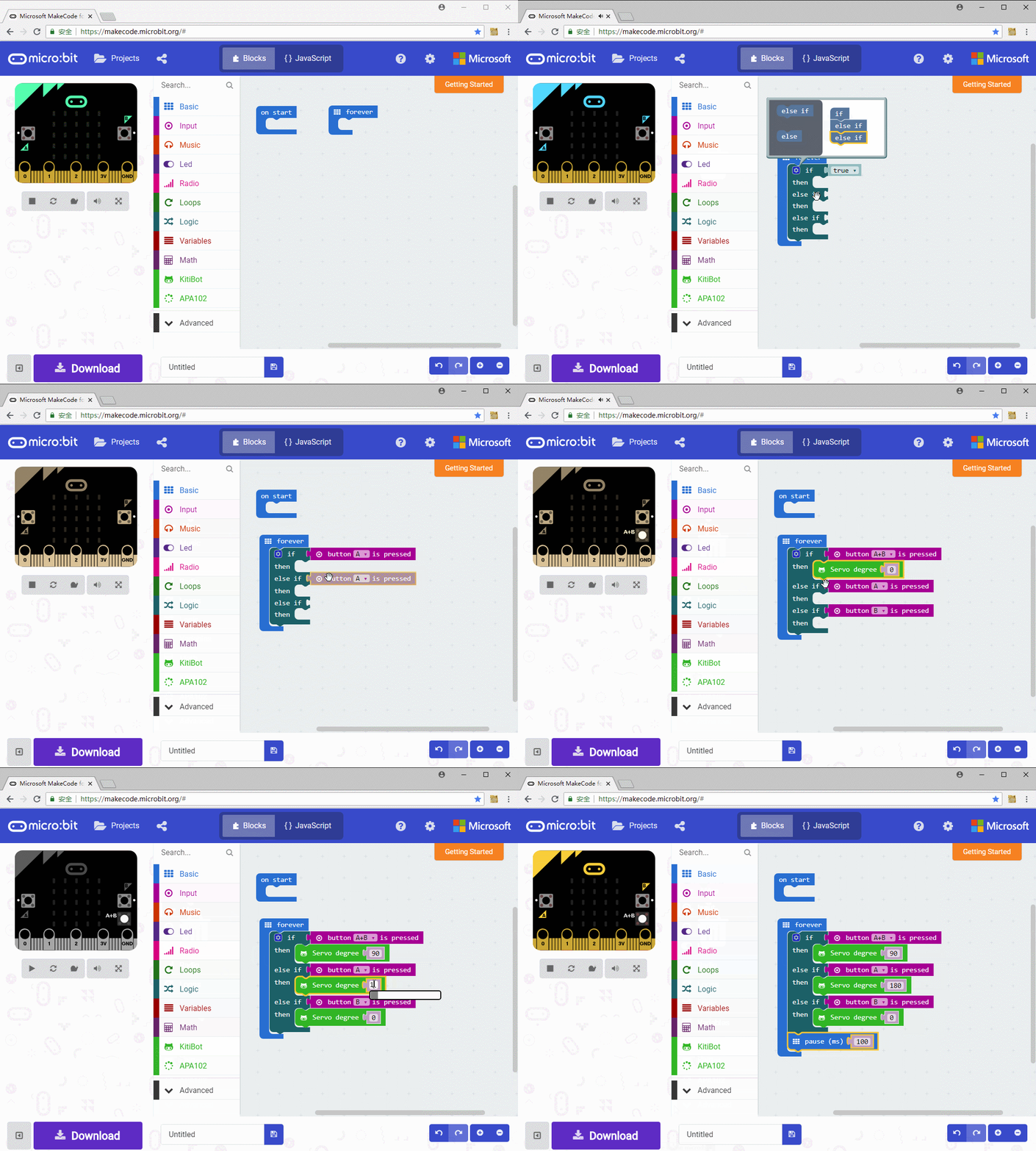
Press A, robot shake to left, and it shake right if press B. Keep forward when both A and B are pressed.
Control shaking angle
Let robot shakes slower and stop in certain angle.
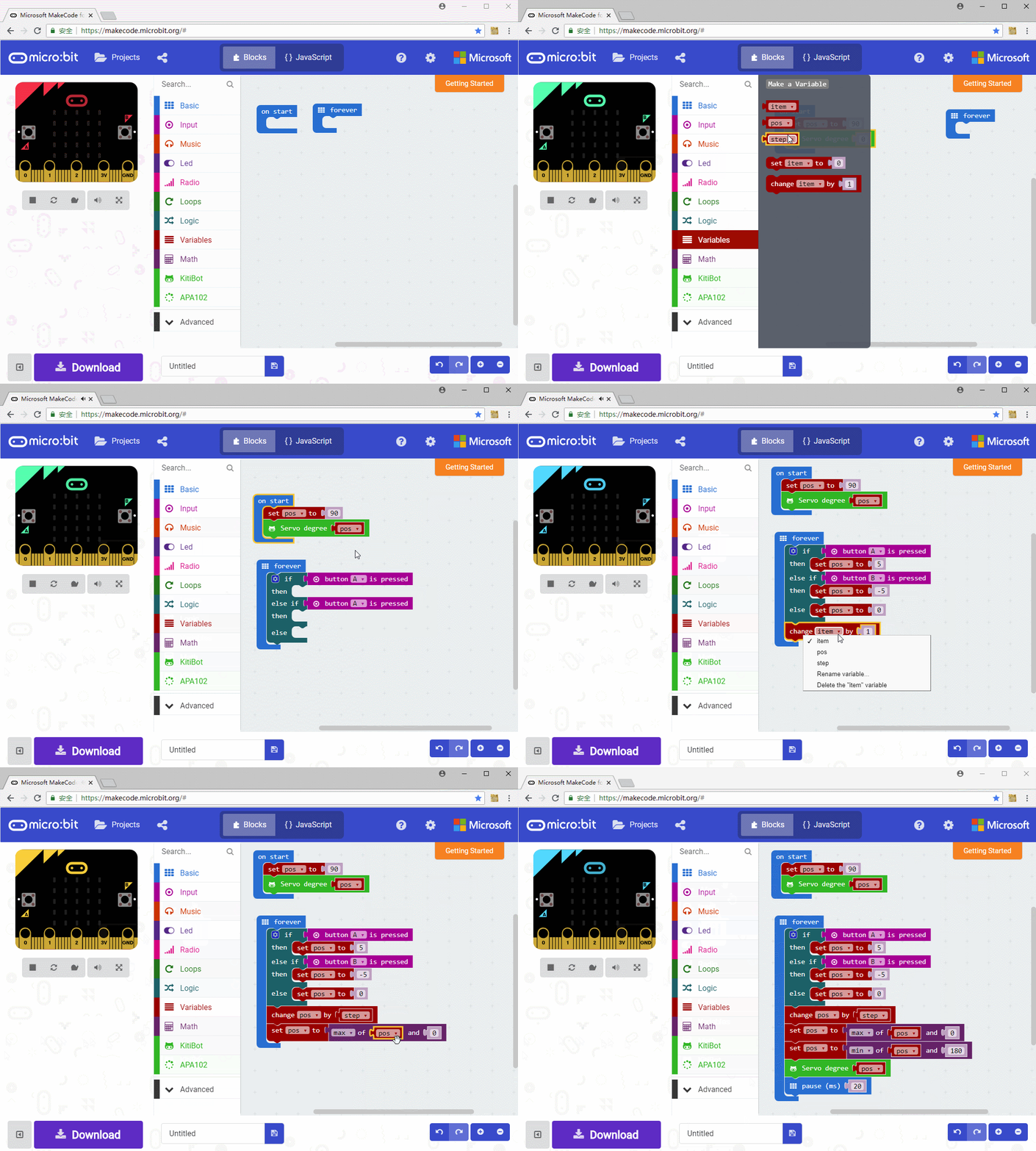
We divided the range of 0 to 180 degrees into several parts within an average. Pressing the key to turn the head, it will move to its next division. If the button is still pressed it will move to the next division and so on, until it reaches a top.
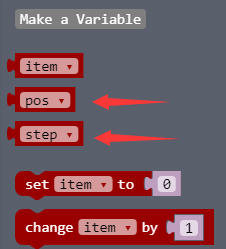
Here, we first set both “pos” and “step” variables. Pos value represents the current position of the steering gear. Step represents the angle of each rotation. A positive number means a left turn. And a negative number means a right turn.

The program starts by setting the “pos” to 90 degrees and turning the steering wheel to 90 degrees.That is, making the robot facing forward.
Then, the program enters into an infinite loop, and determines whether A/B buttons are pressed or released. If the key A is pressed, the step is set to 5, which means the robot looks to the left and turns 5 degrees each time. If the key B is pressed, the step is set to -5, which means the robot looks to the right, turning 5 degrees each time.
Increases the current angle “pos” by its current “step” value, this is the next angle robot will shake.
【Note】If the step is a positive integer, the value of the POS increases, and if the step is a negative integer, the value of the POS decreases. The allowed angle range of servo is from 0 to 180.

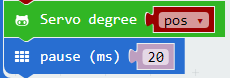
Finally, don't forget to let the servo shake to new degree, robot could only shake with this block.Change the pause time could change the shaking speed